Share |
Showing posts with label eyes. Show all posts

Saturday, May 8, 2010

Eye Level

When shooting people, I think it is always good to shoot at same eye level. It applies to kids' photos too. So to take some decent photos of kids, squating down is a must!

Rather than waiting for kids to lift their heads up looking at the camera, squating down bring the camera to kids' eye level, which attracted their attention to certain extend. At least I felt that they look at the camera more often than while I was standing up. That made it easier for me to snap their photos.

There were things to look out for when squating down. Kids like running around. I had to be aware that the kids might run into my camera (next, you would be hearing some loud cry~). The kids pushed me and leant on me. So I had to be stable too...

It was tiring to squat down and take photos~ And since kids were running around all the time, I needed to keep varying the focal length and turned my head very often to snap them.

Tiring, but fun!


Album: http://picasaweb.google.com/kcshashin/MothersAndKidsShots2May2010

Saturday, April 24, 2010

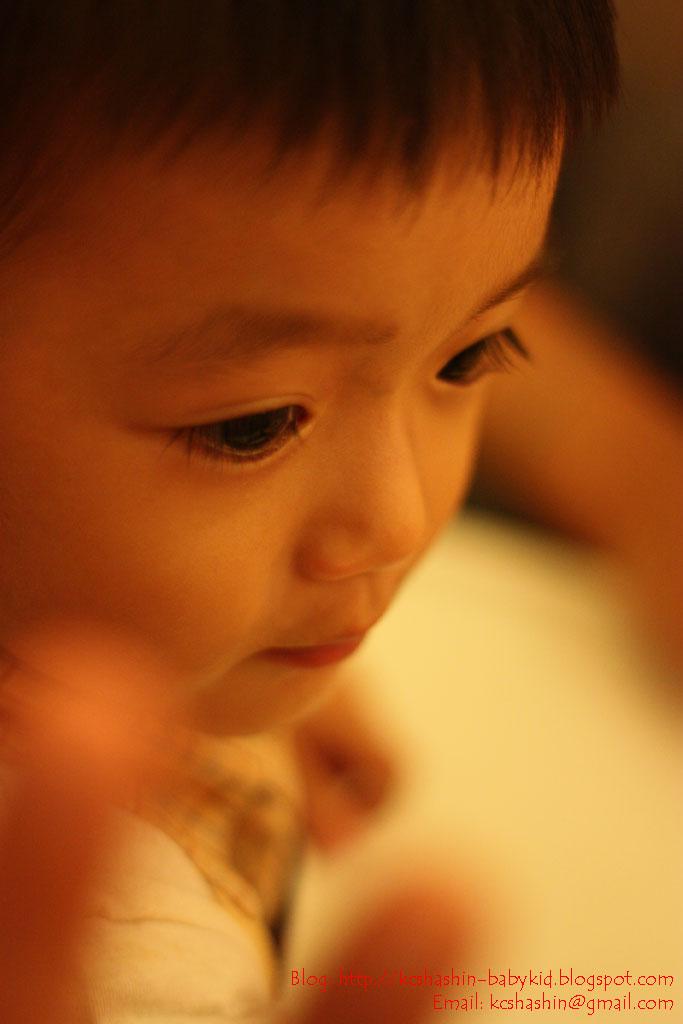
The big eyes

Couldn't help kept looking at the big eyes and long eye lashes of this baby.

I was finding a chance to shoot an innocent look of him. While he was staring at the food, I quickly focused on him and pressed the shutter. Where was the best spot to focus on? The eyes, obviously. They were just too big~ =D

The room lighting was low, so I pumped the ISO up to 800, and kept the aperture of the lens wide open.

I was lucky to get this shot! Babies are very active and they will not sit still, especially baby boy...

I adjusted the color level of the original photo (on the right) in photoshop. The original photo was yellowish due to the lighting of the room.


I like this photo a lot and decided to set it as the background of this blog.

To make the photo blends into the white background, I used the 'Gradient' function in photoshop. It helped create a soft look on the photos.

This is how I do it. First, open up the photo in photoshop, the photo will show up as a background layer. Select the whole image and copy into a new sheet. The reason being photoshop will not let you modify anything that is classified under background.

In the new sheet, the image will show up as 'layer 1'. Add a layer mask to this image (layer 1). Next, select 'Gradient' tool from the toolbar, and start playing with the tool until you get a satisfying result. Below is the after processing photo.

Album: http://picasaweb.google.com/kcshashin/BabyAndKidShotsDec2008